
If your iPhone is showing "Unable to Activate eSIM", "eSIM Cannot Be Added", or "This code is no longer valid", you're not alone. It's the most common question we get, and in nearly every case the cause is the same: the eSIM is already installed on your phone, you just can't see it.
Why this happens
Chances are your first attempt actually worked. When you scanned the QR code or tapped the install button, your iPhone added the eSIM without making it obvious. An eSIM can only be on one phone at a time, so when you try to install it again your iPhone sees that it's already there and won't add a second copy. Rather than explain that, it shows one of those error messages.
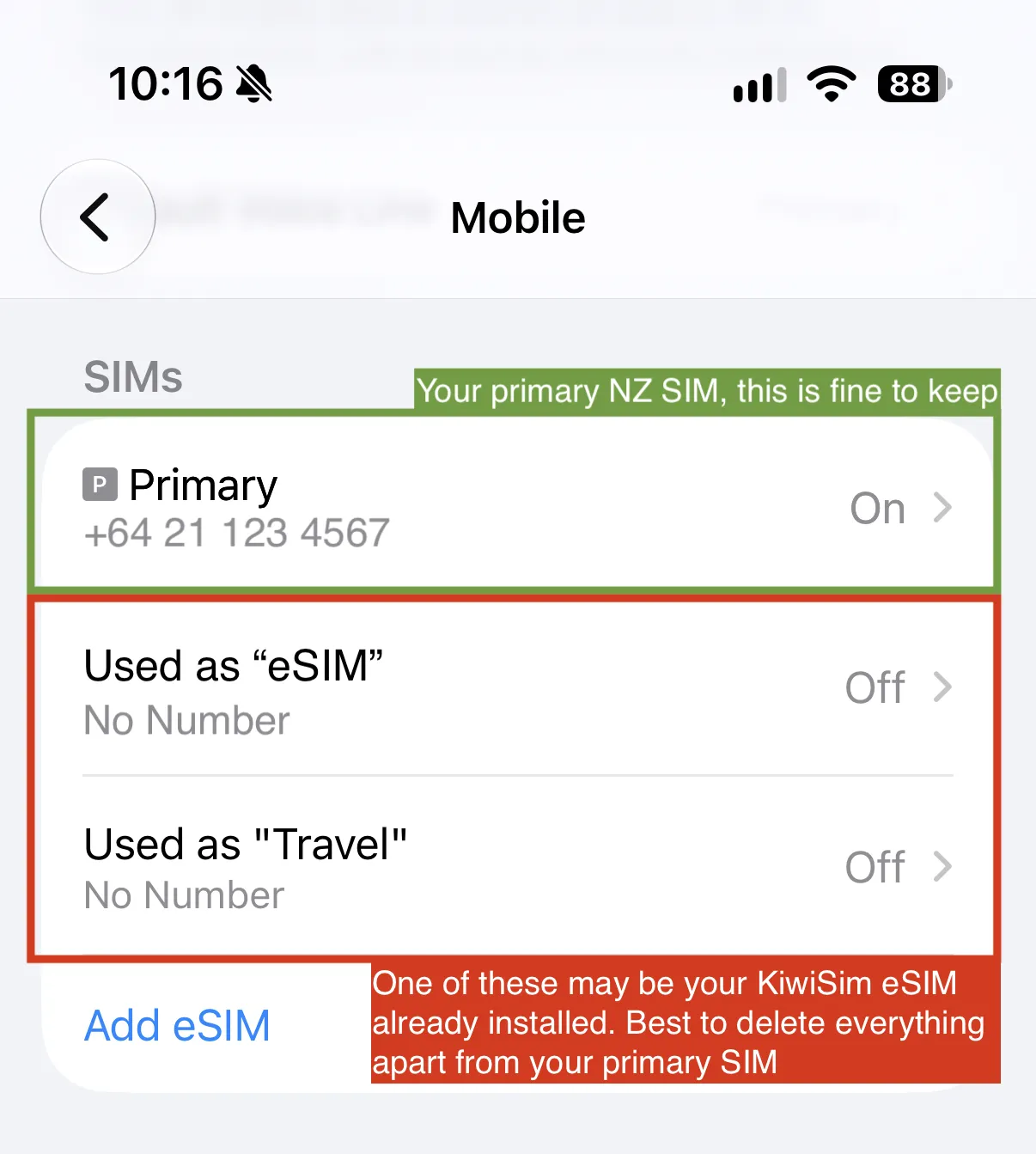
The reason people miss this is that the eSIM doesn't show up as "KiwiSim" on your phone. iPhones give new eSIMs a generic label like "Mobile Data", "Travel", or "Business", so when you look at your SIM list it's easy to assume that extra one is something else.
How to fix it
You need to find the eSIM, delete it, and install it again from your order link. Deleting the eSIM doesn't cancel your plan, and you can reinstall it on the same phone as many times as you like.
Make sure you're connected to Wi-Fi first, then:
- Open Settings and tap Mobile Service. On some iPhones this is called Mobile Data or Cellular.
- Look at the list under SIMs. Your normal New Zealand SIM will have your phone number under it. Leave that one alone.
- Any other SIM in that list without a phone number is your KiwiSim eSIM. Tap on it.
- Scroll to the bottom and tap the red Delete eSIM button.
- Restart your iPhone by holding the side button and the volume up button together, then sliding to power off.
- Once it's back on, open your KiwiSim order link and install the eSIM again.
- Work through the iPhone setup guide step by step. There's a short video on that page if you'd rather watch than read.
When you get to the naming step this time, call it "KiwiSim" so you'll always know which one it is.
Still not working?
Occasionally the SIM list only shows your New Zealand SIM and the error keeps coming back. If that's what you're seeing, get in touch through the live chat on our website and send us a screenshot of your SIMs list. We'll check your order from our side and send you a new eSIM if we need to.